


Obsidian: Markdown Knowledge Base
Manage your Ownable content with Obsidian. Use it as a powerful local CMS for writing, editing, and linking your Markdown files.
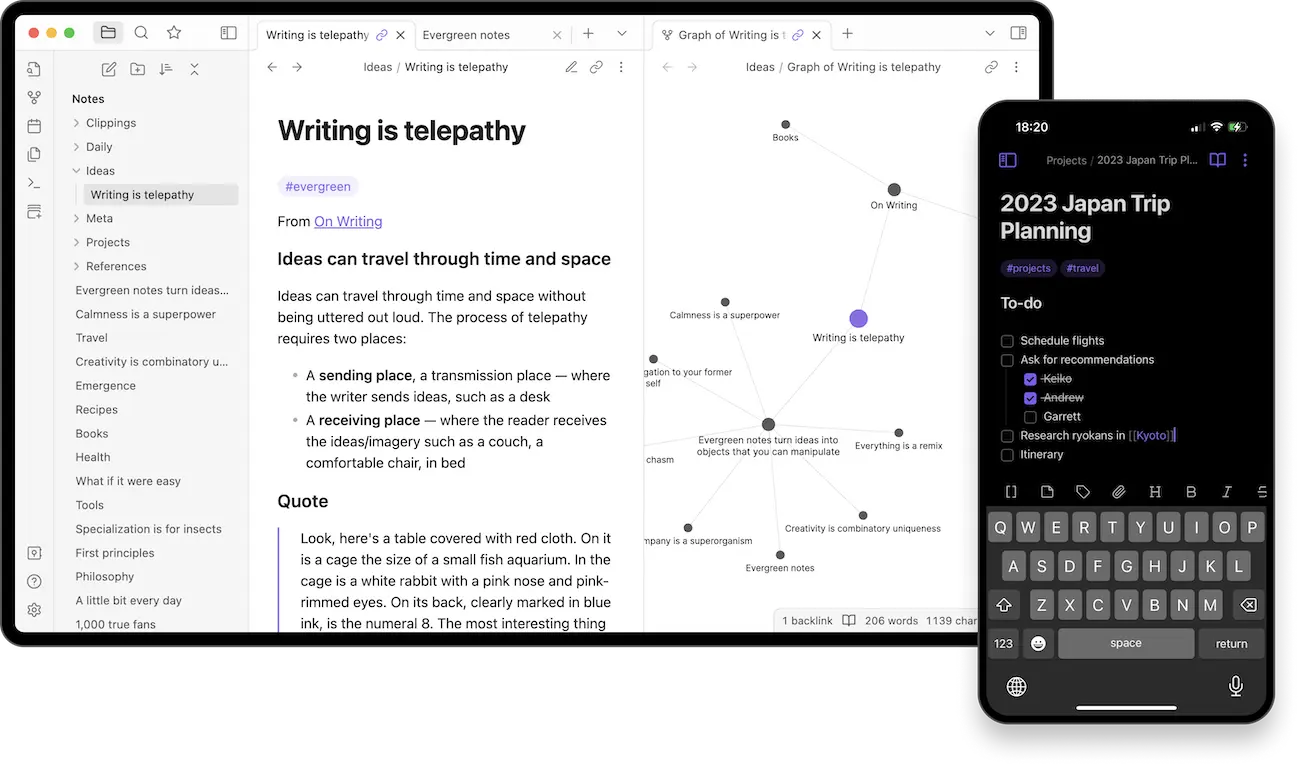
Obsidian is a powerful knowledge base that works on top of a local folder of plain text Markdown files—making it a perfect editor for Ownable.
Vault Structure
For the best developer experience (DX) and portability, we recommend organizing content into Leaf Bundles (self-contained directories). This keeps your post and its assets (images, graphs, notebooks) together.
Configure Obsidian for Ownable
To make Obsidian play nicely with this structure, adjust these settings:
1. File & Link Settings
Go to Settings → Files & Links:
Default location for new attachments
Set to "Same folder as current file".
Why: When you drag an image into a post, it saves directly alongside the markdown file (e.g., inside my-amazing-post/), keeping the bundle self-contained.
Use Wikilinks
Uncheck (Turn Off).
Why: Forces standard Markdown links  instead of ![[image.png]]. Standard Markdown is portable and works natively with Hugo, GitHub, and other tools.
2. Recommended Plugins
Enhance your workflow with these community plugins:
- Folder Note (or similar): Allows you to click a folder (like
my-amazing-post) and edit theindex.mdinside it automatically. This bridges the gap between Obsidian's folder view and Hugo's file structure. - Image Converter: Automatically converts pasted images to WebP or compressed JPEG to keep your repo light.
- Linter: Can automatically format frontmatter or other markdown syntax on save.
Workflow
-
Open Vault Open your project's root folder (or
content/folder) as an Obsidian Vault. -
Create Content
- Create a New Folder for your post (e.g.,
content/blog/my-new-post). - Inside it, create a New Note named
index. - Tip: Use the "Folder Note" plugin to automate this.
- Create a New Folder for your post (e.g.,
-
Add Frontmatter Add your Hugo frontmatter to the top of
index.md:--- title: My New Post date: 2025-01-01 authors: [admin] --- -
Write & Drag Assets Write your post. Drag and drop images, PDFs, or JSON files directly onto the editor. Obsidian will place them in the same folder.
-
Commit Your post and all its assets are now in one tidy folder. Commit and deploy!
Was this page helpful?
Visual Studio Code (VS Code)
Optimize your workflow with VS Code. Recommended extensions for Hugo syntax highlighting, Front Matter management, and grammar checking.
RStudio & RMarkdown Guide
Publish content from RStudio with RMarkdown. Recommended: render to Markdown directly (without blogdown); fallback: blogdown only if necessary.
From the makers of
© 2026 Lore Labs.