


Blog
Step 4: Auto Import Jupyter Notebooks as Blog Posts
4-step open source tutorial to easily build your blog and market yourself
Are you a data professional or researcher working with Jupyter Notebooks?
If so, you may be interested in this guide to blog from Jupyter Notebooks too. Otherwise, you can skip this step.
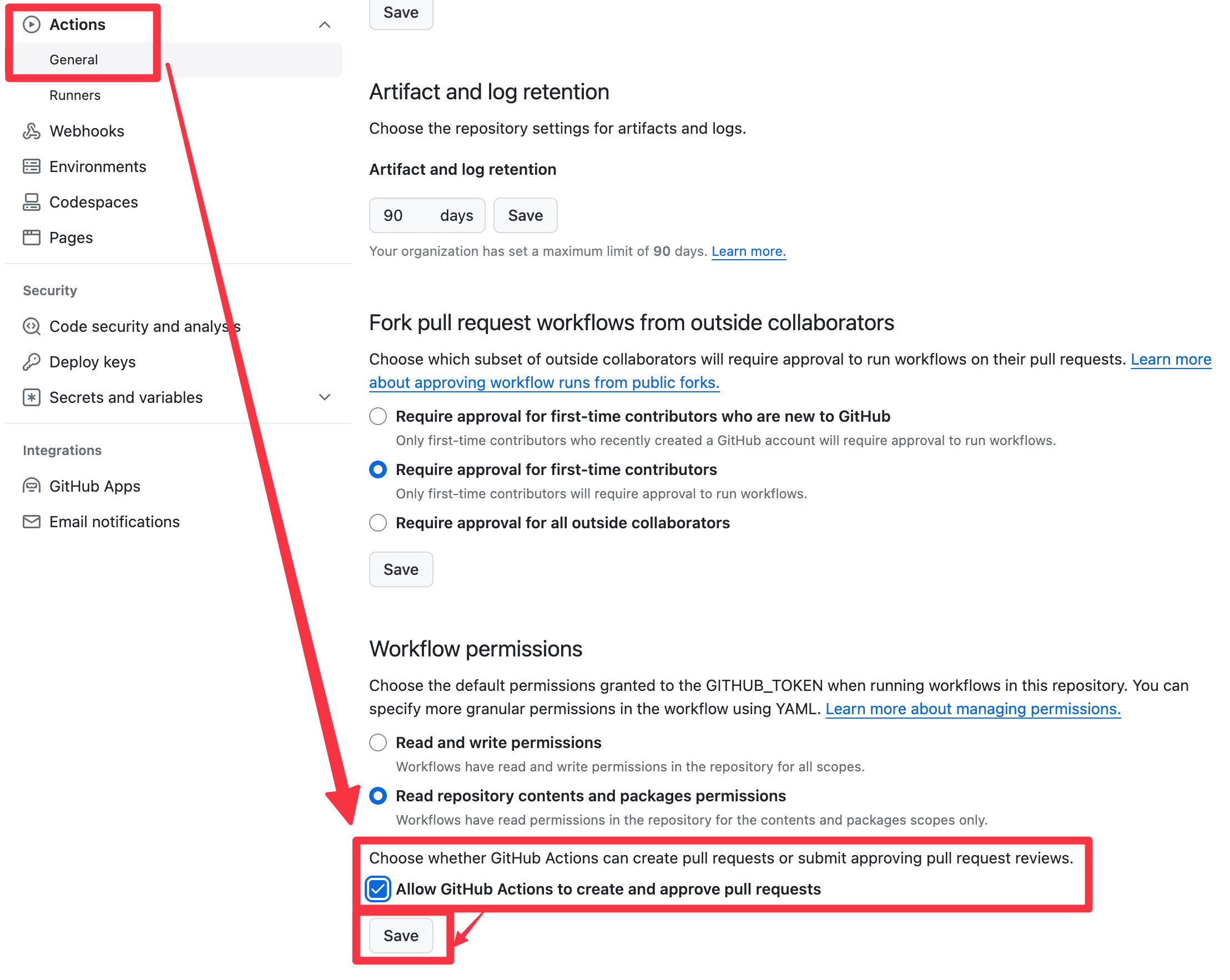
- In your GitHub repository, click the Settings tab at the top of the page, click Actions > General in the left menu, choose Allow and click Save
- Click the
notebooksfolder in your GitHub repository: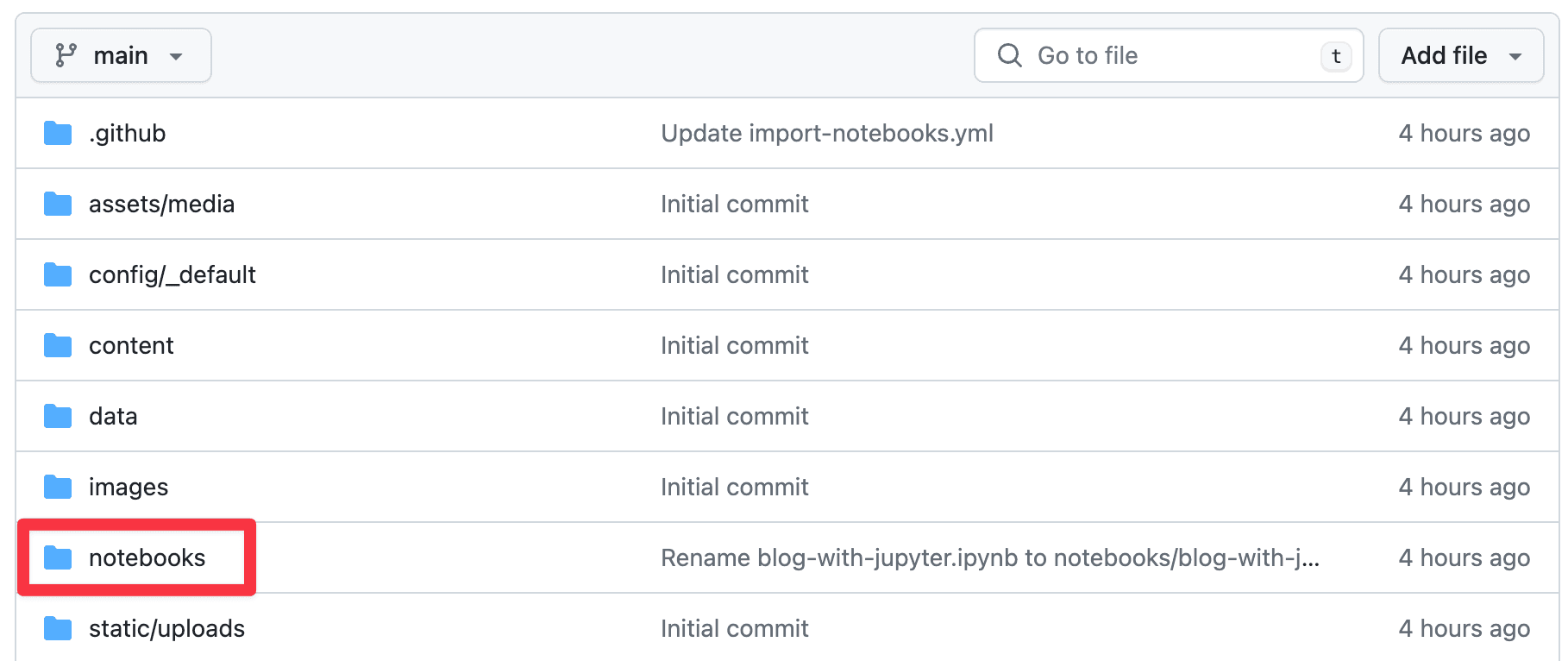
- Within the
notebooksfolder, click Add File > Upload Files: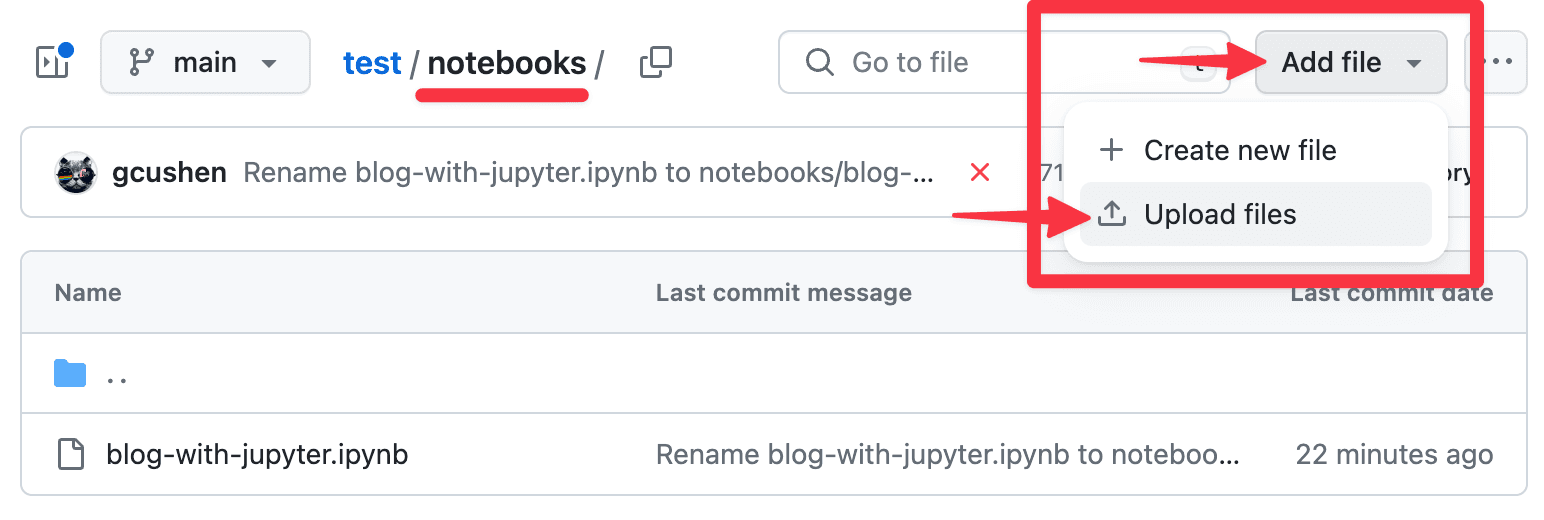
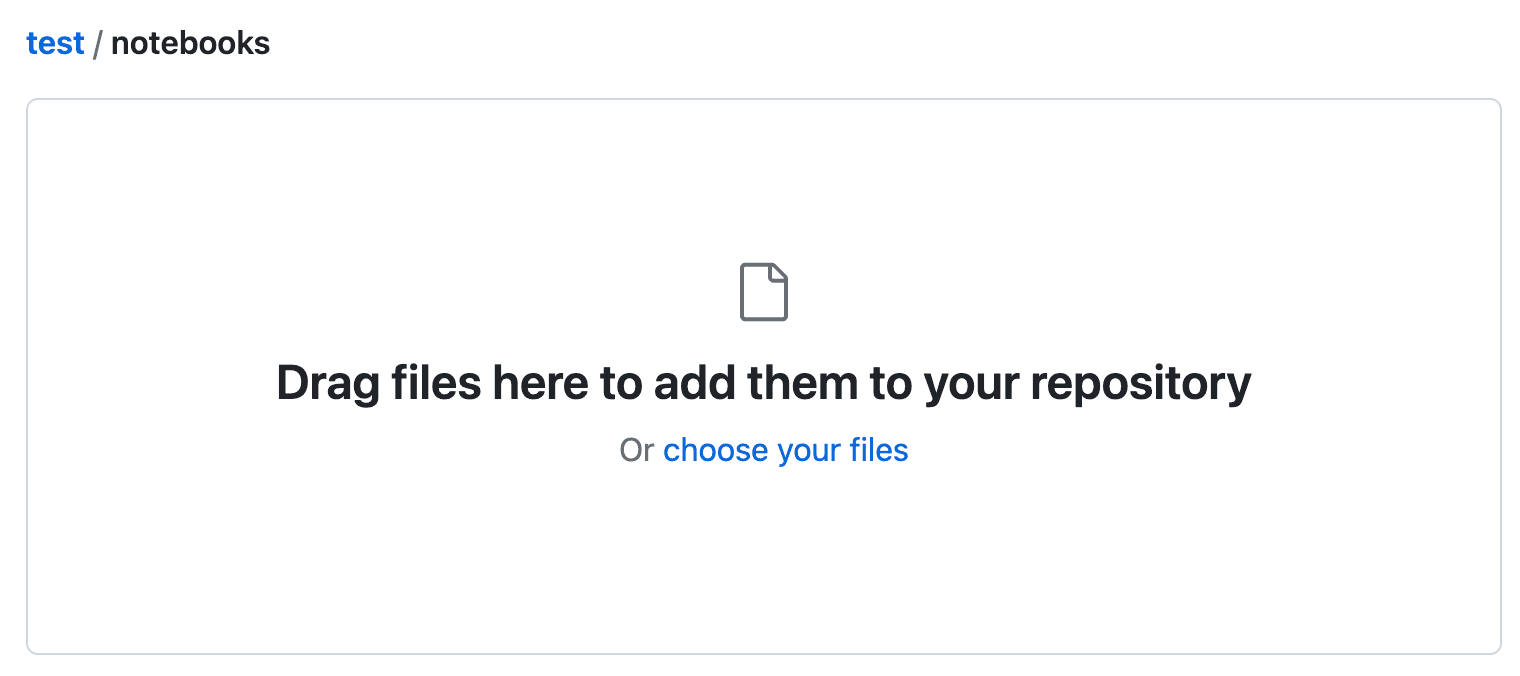
- Drag and drop your Jupyter Notebook files from your computer:
- Click Commit Changes to upload the notebook file(s):
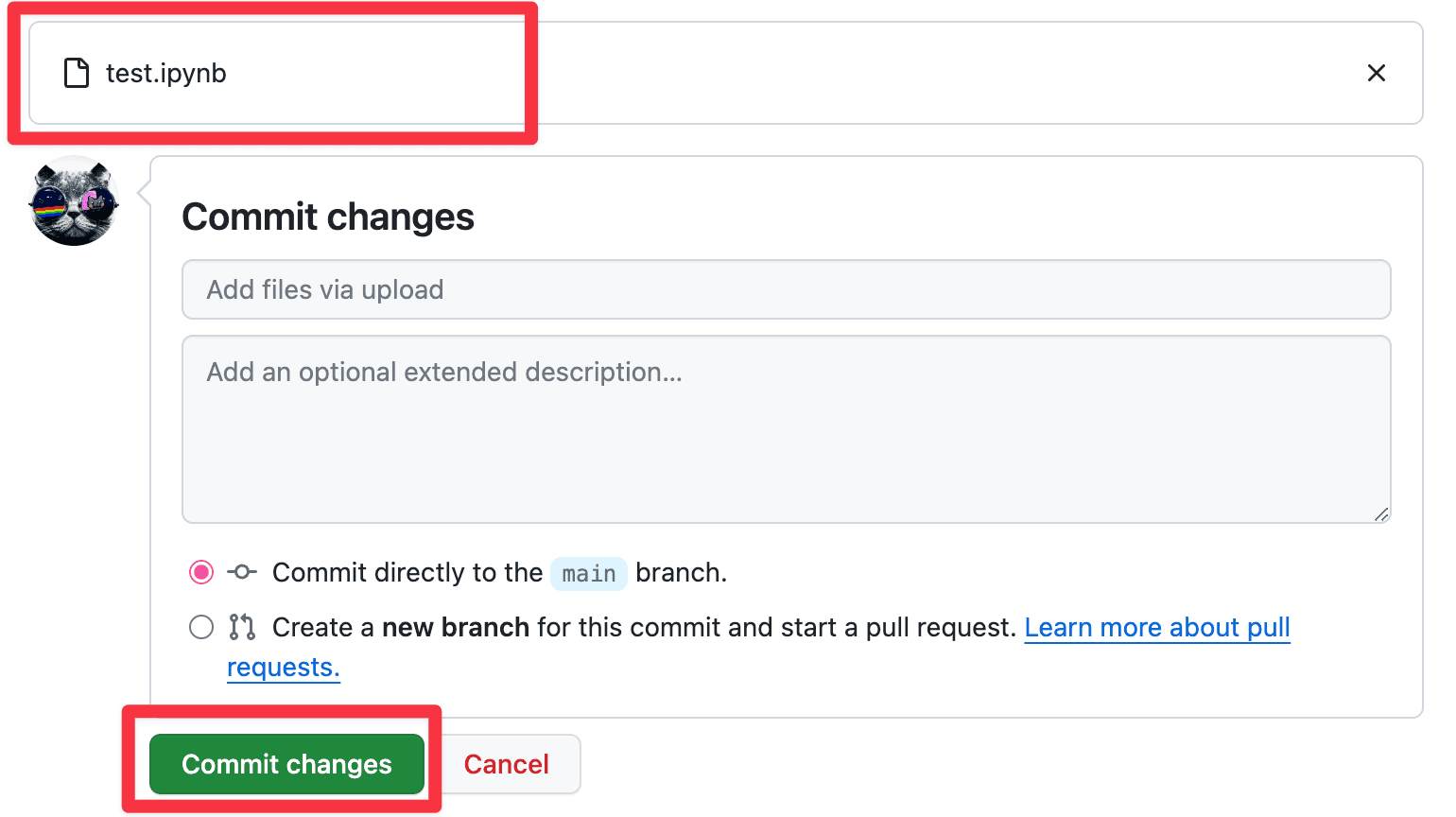
- GitHub will now import your Jupyter Notebooks as blog posts. Within a minute or two, GitHub will create a Pull Request for you to review the changes:
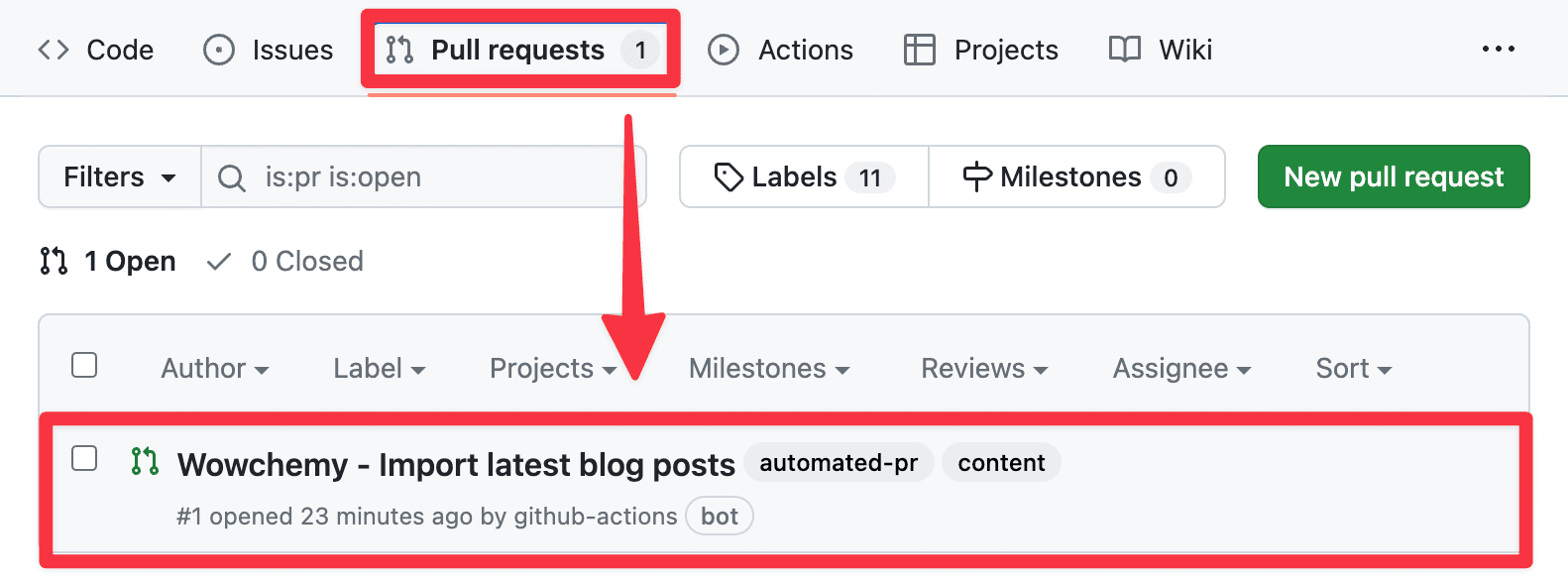
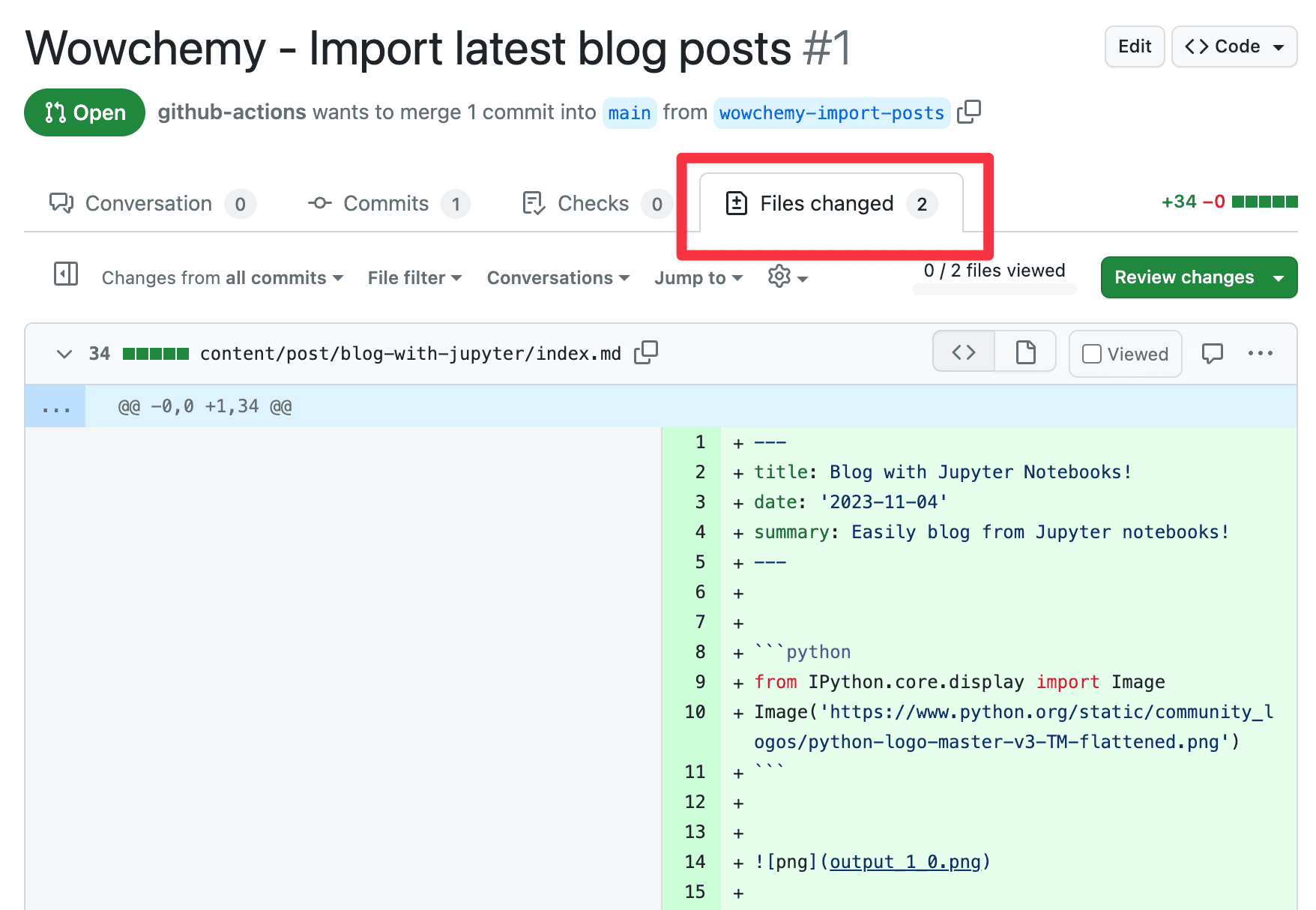
- You can review the changes:
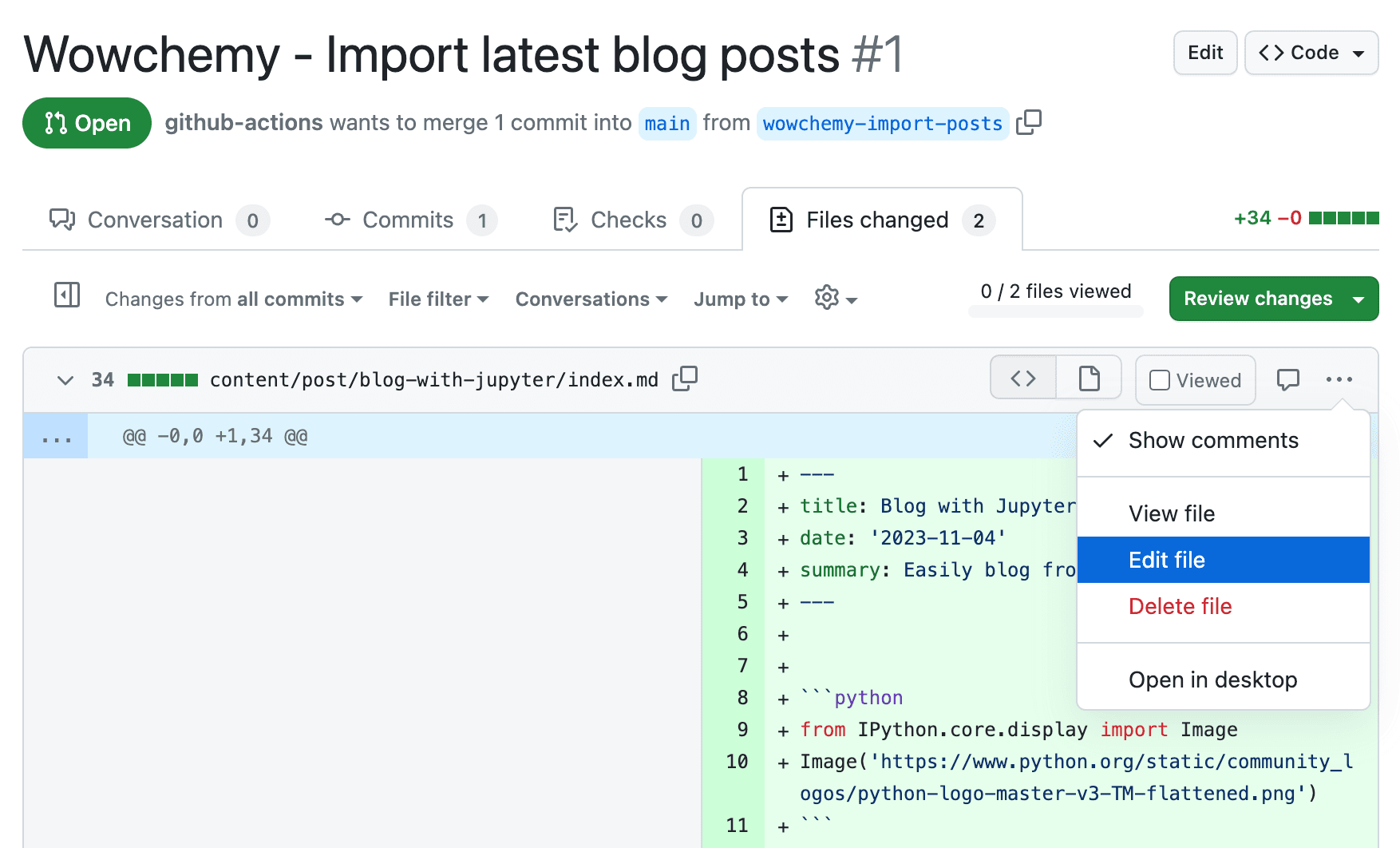
- If you want to edit the posts, click Edit File, otherwise skip to the next step:
- Once you are happy with the changes, click Merge and then Confirm Merge:
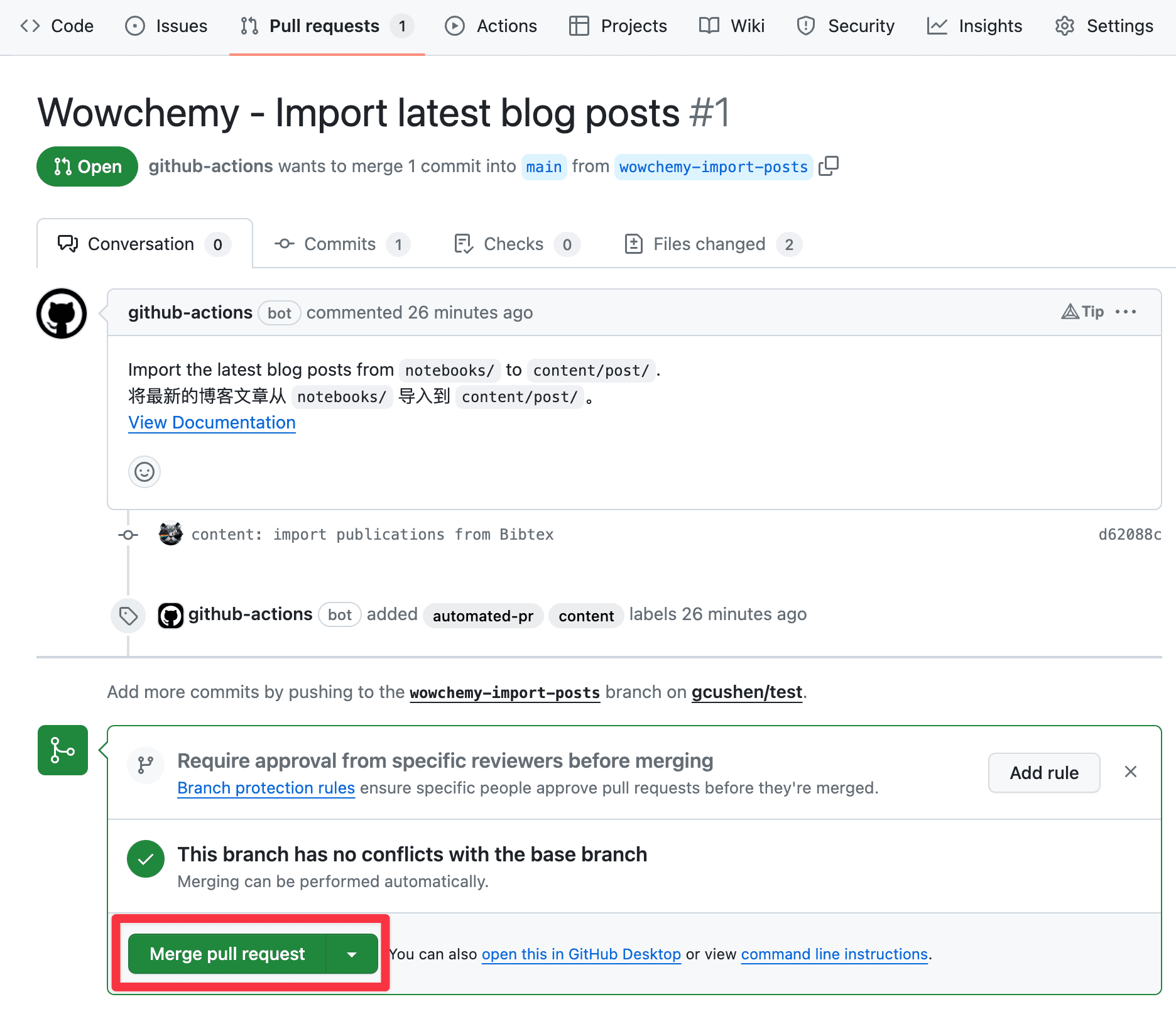
In a few minutes, your website should automatically update to display the new blog posts.
Want to enrich your blog posts? There are many options to customize blog posts such as adding a cover image. View the Page Features guide.
Troubleshooting
- Check that your repo has a file named
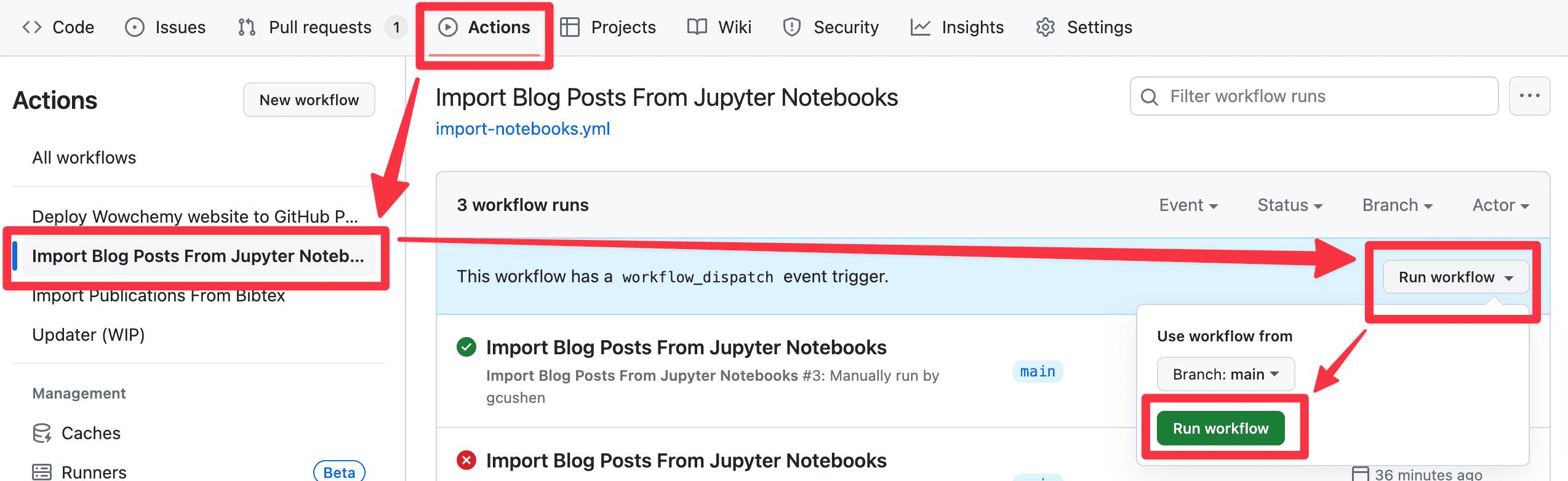
import-notebooksin the.github/workflows/folder. If it doesn't, you can add the file from here. Skip this step for the latest Blog template as it is included. - The importer is automatic, but if you need to manually re-run it, click Actions > Import Blog Posts > Run Workflow > Run Workflow:
Was this page helpful?
Step 3: Create a blog post
4-step open source tutorial to easily build your scientific blog and market yourself
Step 5: Publish
4-step open source tutorial to easily build your scientific blog and market yourself
From the makers of
© 2026 Lore Labs.